Do you want to elevate your gameplay streams and recordings beyond the PS5’s built-in Share button? I did, so I set to it, finding out how to actually get there, and there have been some lessons learned.
A capture card is the one essential tool you’ll need. It allows you to record and stream high-quality, long-form gameplay from your console to a computer (Mac or Windows)
This guide will walk you through everything from the hardware you need to the specific software settings.
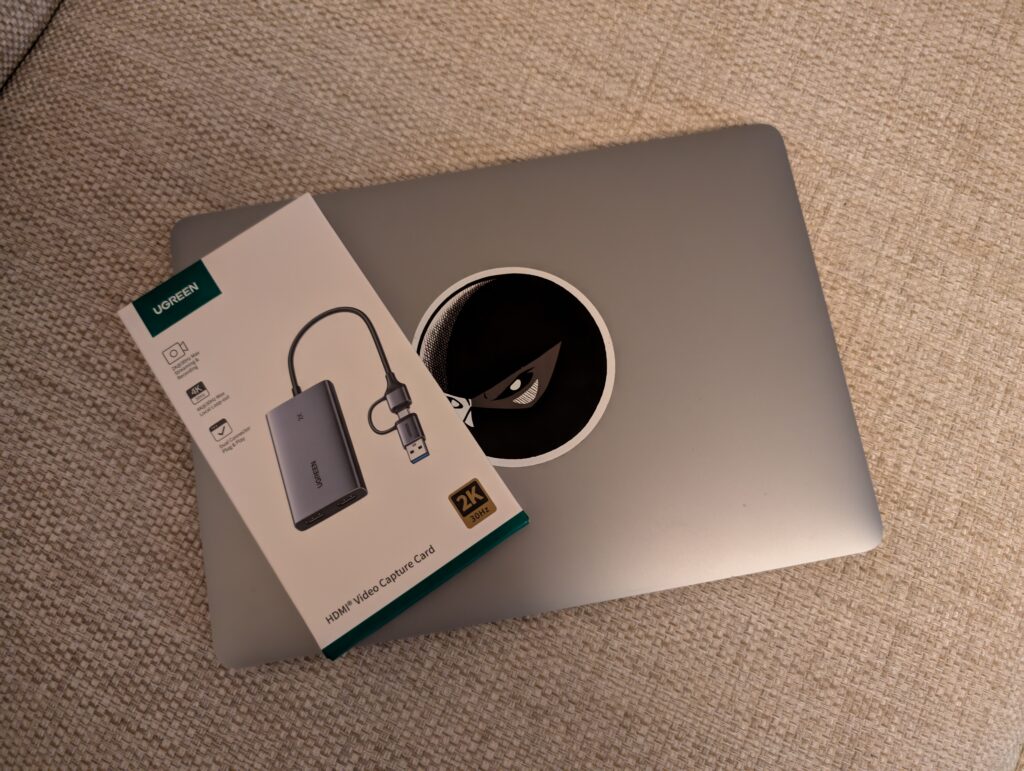
We set out to do this recently and have been using the UGREEN USB-C capture card and a MacBook. It’s been smooth and easy, and we’ve been capturing Ghost of Yotei as our first real test.
The cost/value ratio on this capture card is insane. Elgato used to hold the market with pricey kits, but it’s just not necessary any more. Especially with UGREEN entering the capture card market.
1. What you’ll need
Before we begin, let’s gather the necessary equipment:
- A PlayStation 5 Console: Standard or Digital Edition.
- A Capture Card: This can be an external (e.g., Elgato HD60 X, AVerMedia Live Gamer Portable 2 Plus) or internal (e.g., Elgato 4K60 Pro) device. For most users, an external card is simpler to set up.
- A PC or Mac: This machine will run the recording/streaming software. It should be reasonably powerful to handle encoding video in real-time.
- Two High-Speed HDMI Cables: It’s best to use HDMI 2.0 or 2.1 cables to ensure signal quality. One cable usually comes with your PS5.
- One USB Cable: Your external capture card will come with a USB cable (usually USB-C to USB-A) to connect to your PC.
- A TV or Gaming Monitor: This is what you’ll play your games on.
- Recording/Streaming Software: The most popular choice is OBS Studio (free and powerful), but Streamlabs Desktop or the capture card’s proprietary software (like Elgato’s 4K Capture Utility) also work well.
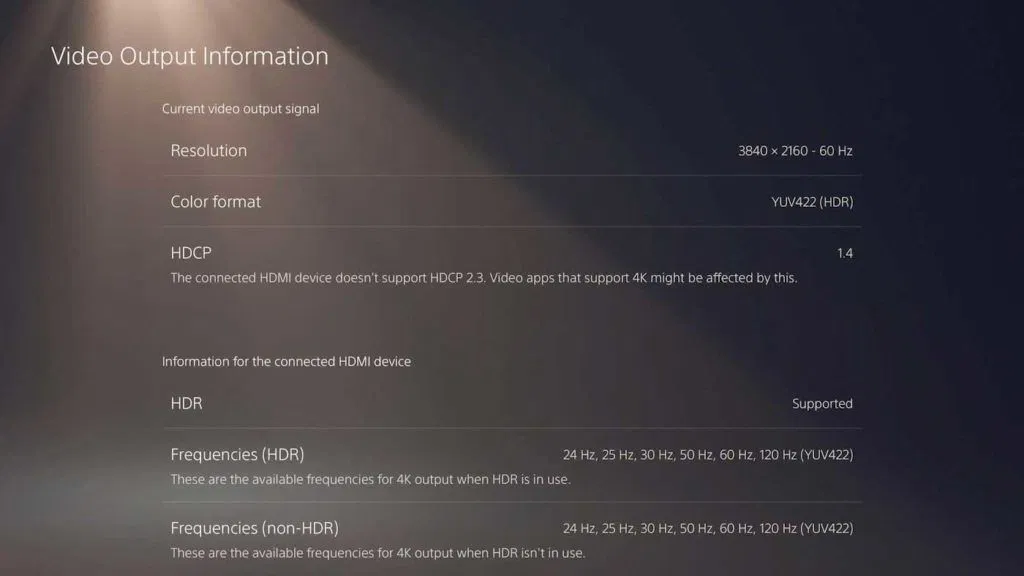
2. Crucial first step: Disable HDCP on your PS5
This is the most important step. HDCP (High-bandwidth Digital Content Protection) is a form of copy protection that prevents the recording of movies and copyrighted content. If you leave it enabled, your capture card will show a black screen or an error message when you try to play a game.
How to Disable HDCP:
- On your PS5, navigate to the home screen.
- Go to Settings (the gear icon in the top right).
- Select System.
- Go to the HDMI menu.
- Find the option Enable HDCP and turn the toggle off.
Note: With HDCP disabled, you will not be able to use media streaming apps like Netflix, Disney+, or Prime Video. You will need to re-enable it to use those services.
3. Hardware setup: Connecting everything
Power everything down before you start plugging in cables to avoid any issues. The signal path will be: PS5 → Capture Card → TV/Monitor, with the capture card also connecting to your PC.
Here is the step-by-step connection process for a typical external capture card:
- Disconnect Existing HDMI: Unplug the HDMI cable from the back of your PS5 that currently goes to your TV/monitor.
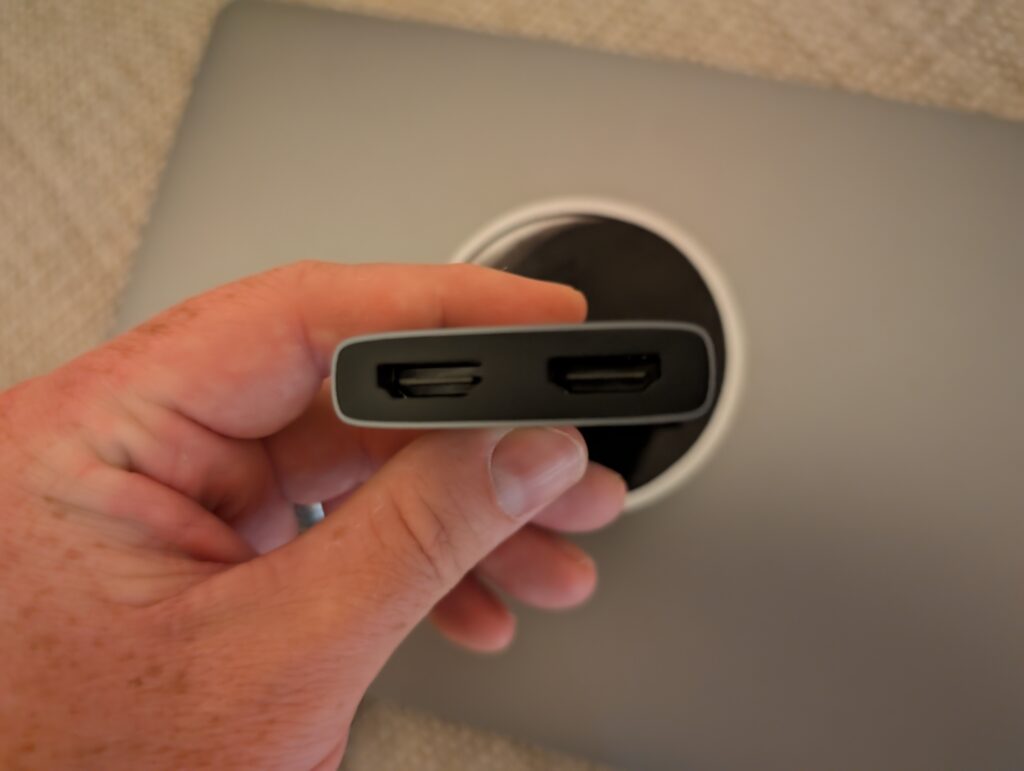
- PS5 to Capture Card: Take one HDMI cable and connect it from the HDMI Out port on your PS5 to the HDMI In port on your capture card.
- Capture Card to TV: Take your second HDMI cable and connect it from the HDMI Out port on your capture card to an available HDMI port on your TV or monitor. This is called “passthrough” and allows you to play your game with zero latency.
- Capture Card to PC: Connect the supplied USB cable from the capture card to a USB 3.0 port (usually blue) on your PC or Mac. Using a USB 2.0 port may result in performance issues or the device not being recognised.
- Power On: Turn on your PS5, your TV/monitor, and your PC. Your TV should display your PS5’s screen as normal.
4. Software setup: Getting the image on your PC
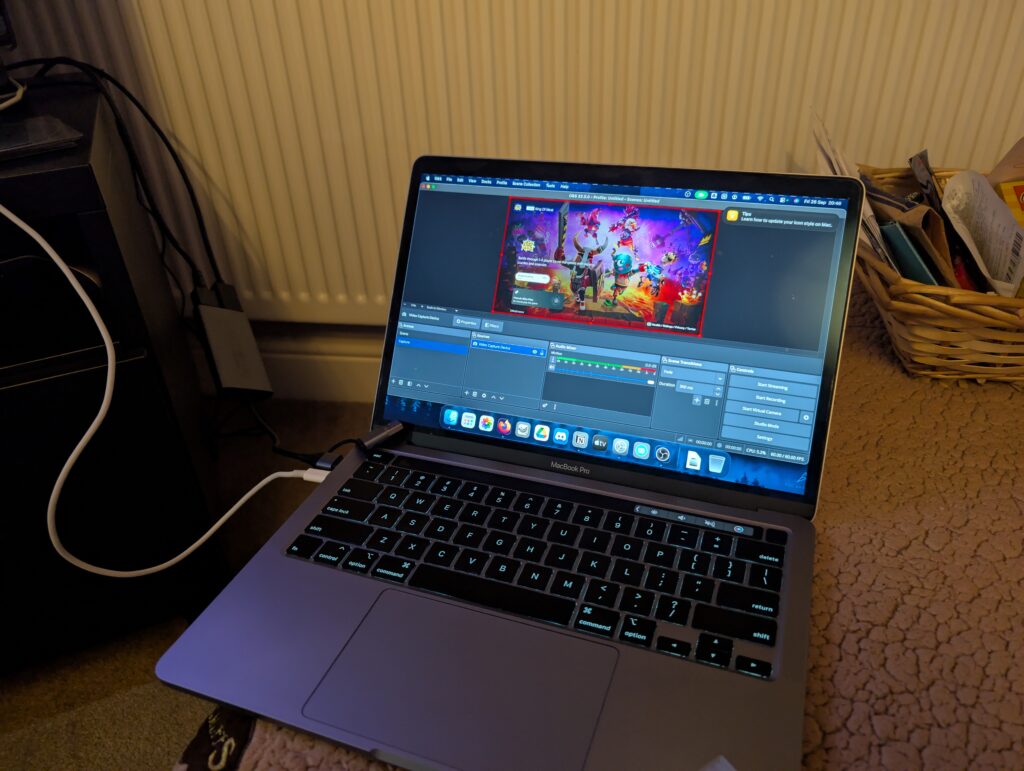
Now that the hardware is connected, we need to tell your PC how to “see” the gameplay footage. We’ll use OBS Studio for this example as it’s the industry standard.
- Install OBS Studio: If you haven’t already, download and install OBS Studio from their official website.
- Open OBS and create a Scene: Scenes are collections of sources. In the bottom-left “Scenes” panel, click the
+button to add a new scene and name it something like “PS5 Gameplay”. - Add Your Capture Card as a Source:
- In the “Sources” panel (next to Scenes), click the
+button. - Select Video Capture Device.
- A new window will pop up. Choose “Create new”, name it “PS5 Capture Card”, and click OK.
- Another properties window will appear. In the “Device” dropdown menu, select your capture card (e.g., “Elgato HD60 X”, “AVerMedia…”).
- Your PS5 screen should now appear in the preview window!
- In the “Sources” panel (next to Scenes), click the
- Configure the Source (If Needed): You can typically leave the settings on default. However, if the image looks incorrect, you may need to manually set the Resolution/FPS Type to “Custom” and then select the correct resolution (e.g., 1920×1080) and frame rate (e.g., 60fps). Click OK.
5. Configuring audio
Often, you’ll see the video but won’t hear anything. Here’s how to fix that.
PS5 Audio Settings:
- On your PS5, go to Settings > Sound > Audio Output.
- Ensure the Output Device is set to HDMI Device (TV).
OBS Audio Settings:
- In the “Sources” panel in OBS, click
+and select Audio Input Capture. - Name it “PS5 Audio” and click OK.
- From the “Device” dropdown, select your capture card.
- You should now see a new meter moving in the “Audio Mixer” panel in OBS.
- To hear the audio yourself through your PC headphones, click the three-dots icon next to your “PS5 Audio” mixer track and select Advanced Audio Properties.
- Find your “PS5 Audio” source in the list and change its Audio Monitoring dropdown from “Monitor Off” to Monitor and Output. Warning: Do not listen through speakers, as this will create an echo.
6. Optimising for high-fidelity gaming (4K, 120Hz, VRR)
The PS5 has powerful display features, but capture cards can have limitations.
- 4K Capture vs. 4K Passthrough: Many mid-range cards offer 4K Passthrough (you can play in 4K on your TV) but only 1080p Capture (your recording/stream will be 1080p). If you want to record in 4K, you need a more premium card specifically rated for 4K capture (like the Elgato 4K60 Pro).
- 120Hz: Most capture cards do not support capturing at 120 frames per second. While some high-end cards can pass through a 120Hz signal at lower resolutions, you will almost always be capturing at a maximum of 60fps. For a stable capture experience, it’s recommended to go into your PS5’s Screen and Video settings and cap the 120 Hz Output to Off.
- VRR (Variable Refresh Rate): VRR can cause signal flickering or screen tearing with a capture card. It is highly recommended to disable VRR in the PS5’s Screen and Video settings while streaming or recording.
- HDR (High Dynamic Range): HDR can make colours look washed out or overly dark on stream because many platforms don’t correctly process it. It’s best to turn HDR off on your PS5 (Settings > Screen and Video > Video Output > HDR > Off) for the most compatible and vibrant-looking stream.
7. Troubleshooting common issues
- Black Screen in OBS:
- Check HDCP: Is it disabled on the PS5? This is the #1 cause.
- Check Cables: Ensure all HDMI cables are securely plugged in.
- Check USB Port: Are you using a USB 3.0 port? Try a different one.
- No Audio:
- Check the PS5 sound output settings are set to HDMI.
- Make sure you’ve added the capture card as an “Audio Input Capture” source in OBS.
- Laggy Gameplay on Your TV: This should not happen with modern cards. If it does, your capture card may be faulty or not capable of passing through the signal your PS5 is outputting. Lower the PS5’s resolution to 1080p to test.
- Laggy Preview in OBS: It’s normal for the video preview in OBS to have a slight delay (latency). Always play your game by looking at your TV/Monitor, not the OBS window.
You are now ready to create amazing PS5 content. Happy streaming and recording!
Want to grab your own UGREEN USB-C Capture Card? Buy it on Amazon now. And for even more guides on gaming and tech, click right here.
Disclaimer: To help keep the site running, we need pennies. So, we’ve included affiliate links that will help us earn commission if you use them to go to the site and proceed to purchase stuff. You don’t have to, but when you do, it puts a smile on our faces and makes us do a little dance.