



Christmas is almost here, and no doubt some lucky gamers will be unwrapping a brand new Steam Deck!
I love my Steam Deck. It’s one of the best innovations in gaming for years. Taking a massive amount of my Steam Library and making it portable. I’ve used it on planes and trains. I’ve picked up progress in bed, and done dailies in hotels when working away.
Solely as a gaming handheld, it’s worth the money. But the Steam Deck is so much more, and I think we’re all missing out on the potential of having a portable PC.
So, I wanted to put some of my favourite tricks and tips down and share the wealth!
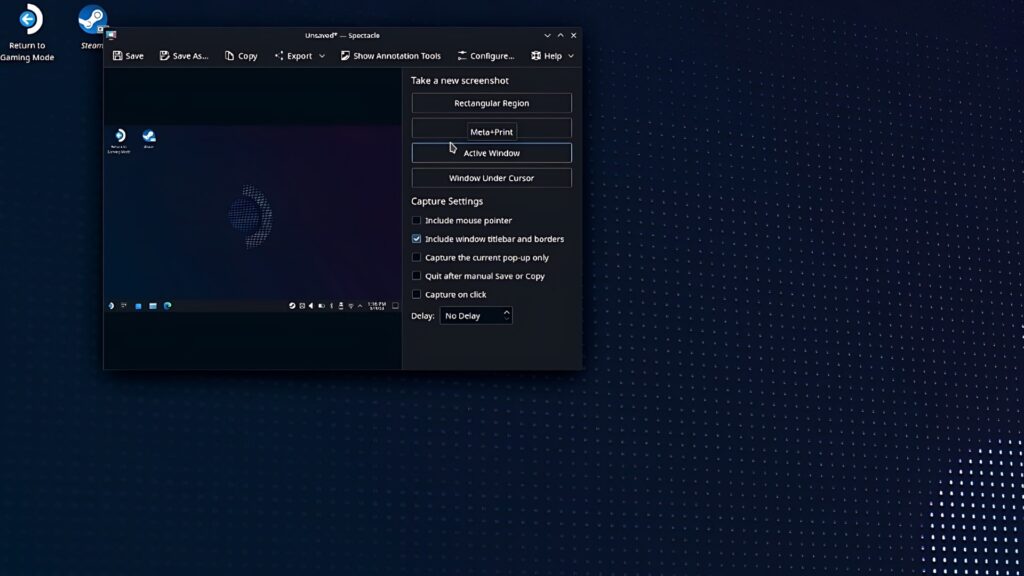
Master Your Controls in Desktop Mode
Navigating Desktop Mode can sometimes feel a bit clunky with the Steam Deck’s built-in controls. If you’re launching games or applications directly from the desktop, you might find yourself wishing for a quick way to switch between traditional mouse-and-keyboard emulation and a more familiar controller layout.
The trick here is to simply hold down the Options (Start) button. This acts as a toggle, seamlessly switching your input mode. This means you can easily go from using the trackpads and joysticks to emulate a mouse and keyboard for desktop tasks, then instantly switch back to a controller-like input when you launch a game. It’s incredibly handy for a smoother workflow when you’re not in Gaming Mode.
The Ultimate Audio Experience: Music and Gaming Combined
Wouldn’t it be great to listen to your favorite tunes while diving into a game, all through your Steam Deck and headphones? You absolutely can, and it’s surprisingly easy to set up.
First, pair your Bluetooth headphones to your Steam Deck. Then, pair your phone to your Steam Deck via Bluetooth as well. Your Steam Deck will essentially act as a Bluetooth speaker for your phone. Now, when you play music from apps like Spotify on your phone, the audio will route through your Steam Deck and mix perfectly with your in-game audio.
Here’s the clever part for volume control:
- Use your phone to adjust the music volume independently.
- Use your Steam Deck’s volume controls to adjust the overall mixed volume of both the game and your music.
This setup ensures you get the best of both worlds, allowing you to fine-tune your audio experience without missing a beat of the action or your playlist.

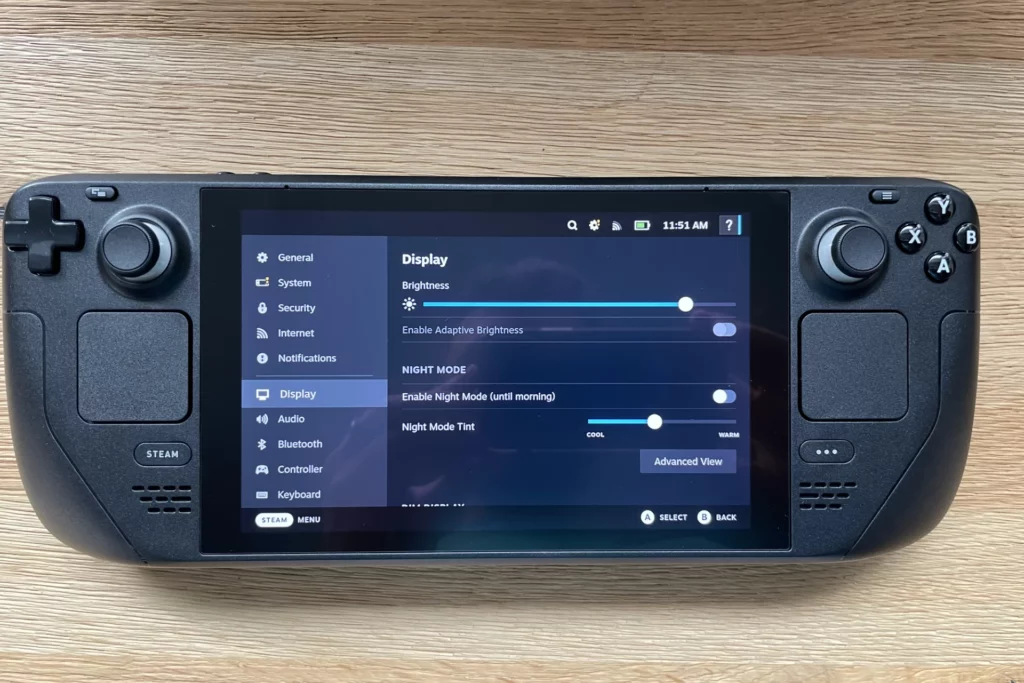
Quick Access to Desktop Mode
For those who frequently jump into Desktop Mode to tinker with game configurations, manage files, or just generally use the Linux environment, constantly switching out of Gaming Mode can be a bit of a hassle.
A fantastic shortcut is to add “Nested Desktop” as a non-Steam game. You can usually find this utility in Desktop Mode itself. Once added, you can launch Desktop Mode directly from your Steam Library in Gaming Mode, just like any other game. While some niche inputs, such as scrolling with the left trackpad, might not function perfectly, it offers awesome convenience for quick edits and tweaks.
Plus, you can often leave a game running in the background while you pop into this nested desktop, making it incredibly efficient for multitasking.
Developer’s Delight: Podman and Distrobox
For the more technically inclined, especially software developers, the Steam Deck offers some powerful tools right out of the box. Recent versions of SteamOS now come with Podman and Distrobox pre-installed.
This is a game-changer because it allows you to run lightweight, rootless containers and even entire Linux distributions without needing to install anything extra or modify the filesystem. Podman provides a daemonless container engine, making it efficient and secure, while Distrobox lets you create and manage development environments within containers.
This means you can set up isolated coding environments, test different tools, or even run specific applications without cluttering your main SteamOS installation.
It’s a goldmine for anyone looking to do more than just game on their Deck.
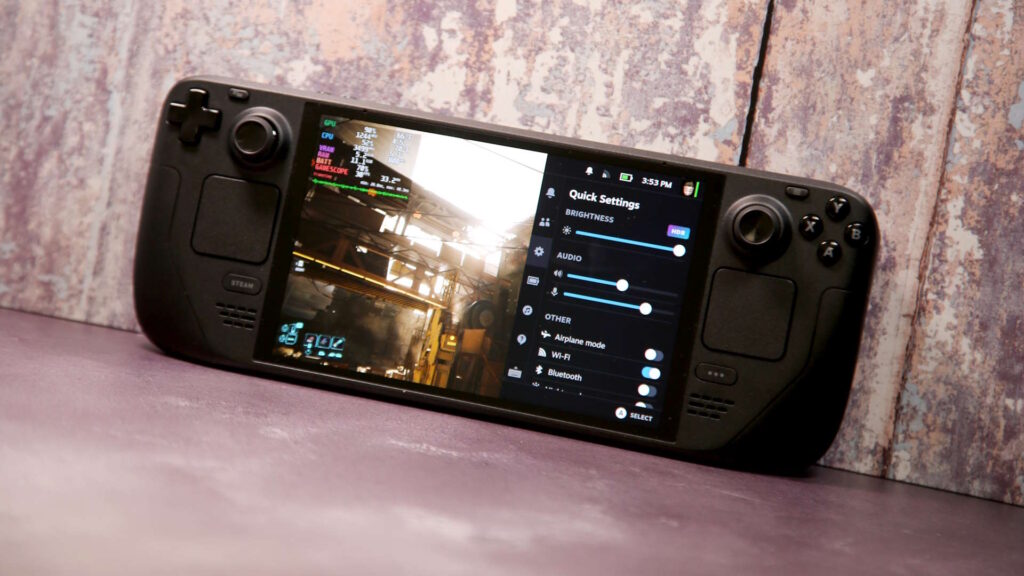
Instant Brightness Control and Handy Reminders
Two often-overlooked but incredibly useful shortcuts involve the “dots” button (the Quick Access Menu button, usually on the right side of the device).
- Adjusting Brightness on the Fly: Need to quickly brighten or dim your screen? Simply hold down the “dots” button and move the left joystick up or down. This provides instant, granular control over your screen brightness, perfect for adapting to different lighting conditions without diving into menus.
- Discovering Button Combos: The Steam Deck has a variety of helpful button combinations, and remembering them all can be tricky. If you hold down the “dots” button and then do nothing for a couple of seconds, a handy on-screen overlay will pop up, reminding you of all the available button combos. This is a fantastic way to discover new shortcuts and serves as a quick reference guide, ensuring you get the most out of your Steam Deck’s intuitive controls. It’s easily one of the most used and appreciated features for many Deck users!
Look at it like a PC
Get yourself a dock (UGREEN do a great one for a good price), and plug it into your TV. Sure, you can connect a controller and game on the big screen (a la Nintendo Switch!). But if you put the Steam Deck into desktop mode, plug a dongle into your dock, and use a wireless mouse and keyboard to utilise the Steam Deck as a PC.
Wanna watch YouTube or do some browsing? No problem! Need to work on some documents or get some emails written? Desktop mode and your favourite browser will do the job.
Look at all the applications you can download and install, beyond games. You can make it a mobile productivity powerhouse, or a chill-out entertainment centre without having to carry a laptop or tablet.
You don’t even need to dock it or use a mouse and keyboard. Sure, the M&K make it much easier to use. But the trackpad and touch screen are more than adequate when you’re on the move.
The Steam Deck is so much more than just a fantastic gaming machine. Look at it from a different perspective, and see what else you can get out of this modern wonder.